Your shopping list
The shopping list holds the tracks you’ve decided to buy, from every playlist. The Shopping list tab in the top bar opens it, and the button beside the playlist picker shows how many tracks are on it and what they come to.
Adding tracks
Section titled “Adding tracks”- In Track Workspace, tick tracks and choose Add n to your list in the bar above the table, or choose Add in a track’s Shopping list column.
- On a track’s page, choose Add to your list on the plan card, or on any store’s copy under Where to get it. Adding another version or another store’s copy makes it the plan for that track. See A track’s page.
Tracks to buy, free downloads, record pool tracks and second-hand CDs can go on the list. Tracks already in your library can’t.
The list
Section titled “The list”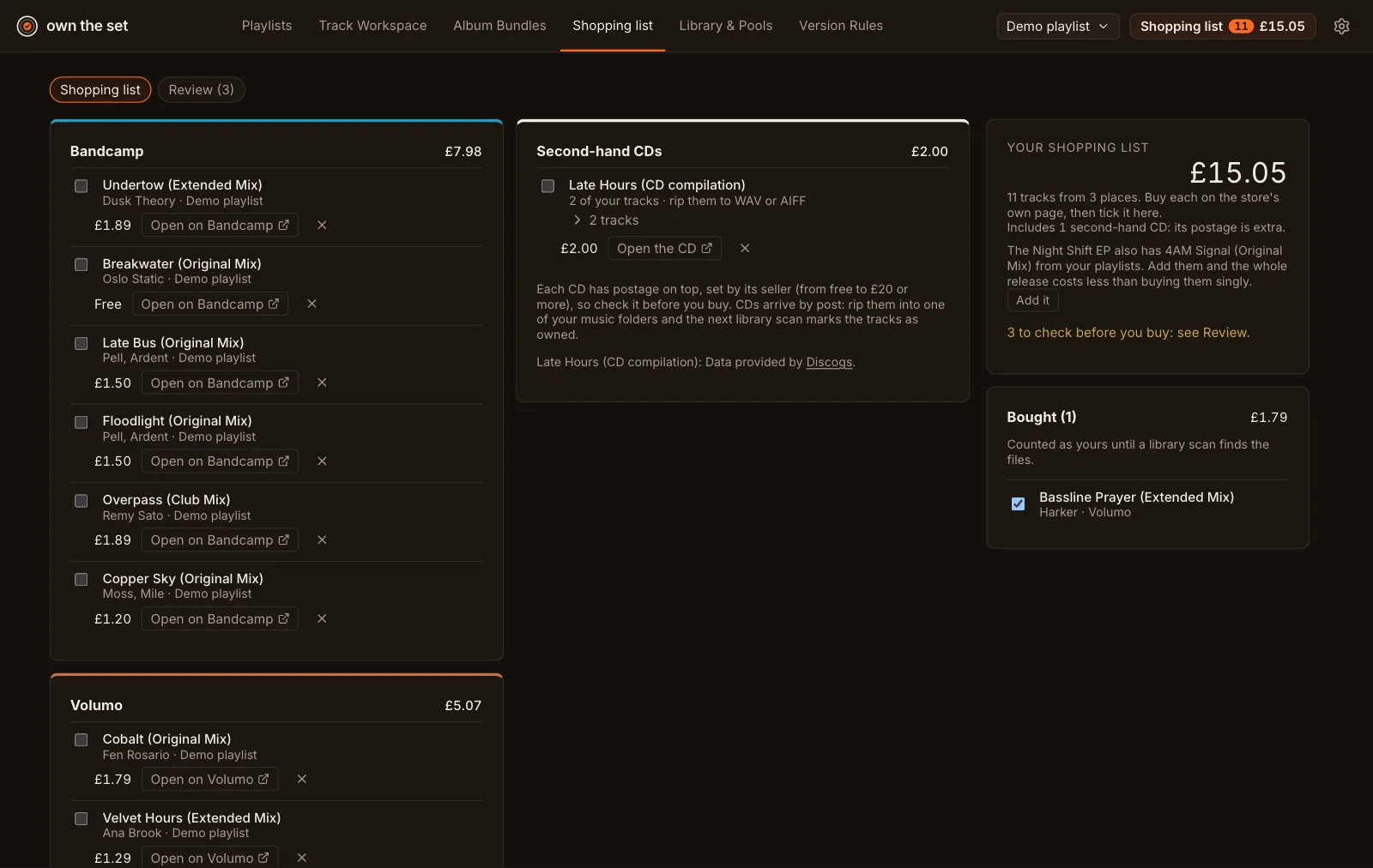
One card per store, with second-hand CDs last. Each line has:
- a tick box: tick it once you’ve bought the track on the store;
- Open on [store], which opens the store’s own page, where you buy it;
- × to take it off the list.
When the tracks you’ve listed from one release cost more singly than the whole release, the list shows the release once, with its tracks in an expanding list beneath. A CD is listed once, with the tracks it holds beneath it.
The side column has the total, a note when second-hand CDs are included (their postage is extra), and any release that has more of your tracks on it: Add them puts them on the list. Ticked tracks move to Bought and count as yours until a library scan finds the files.
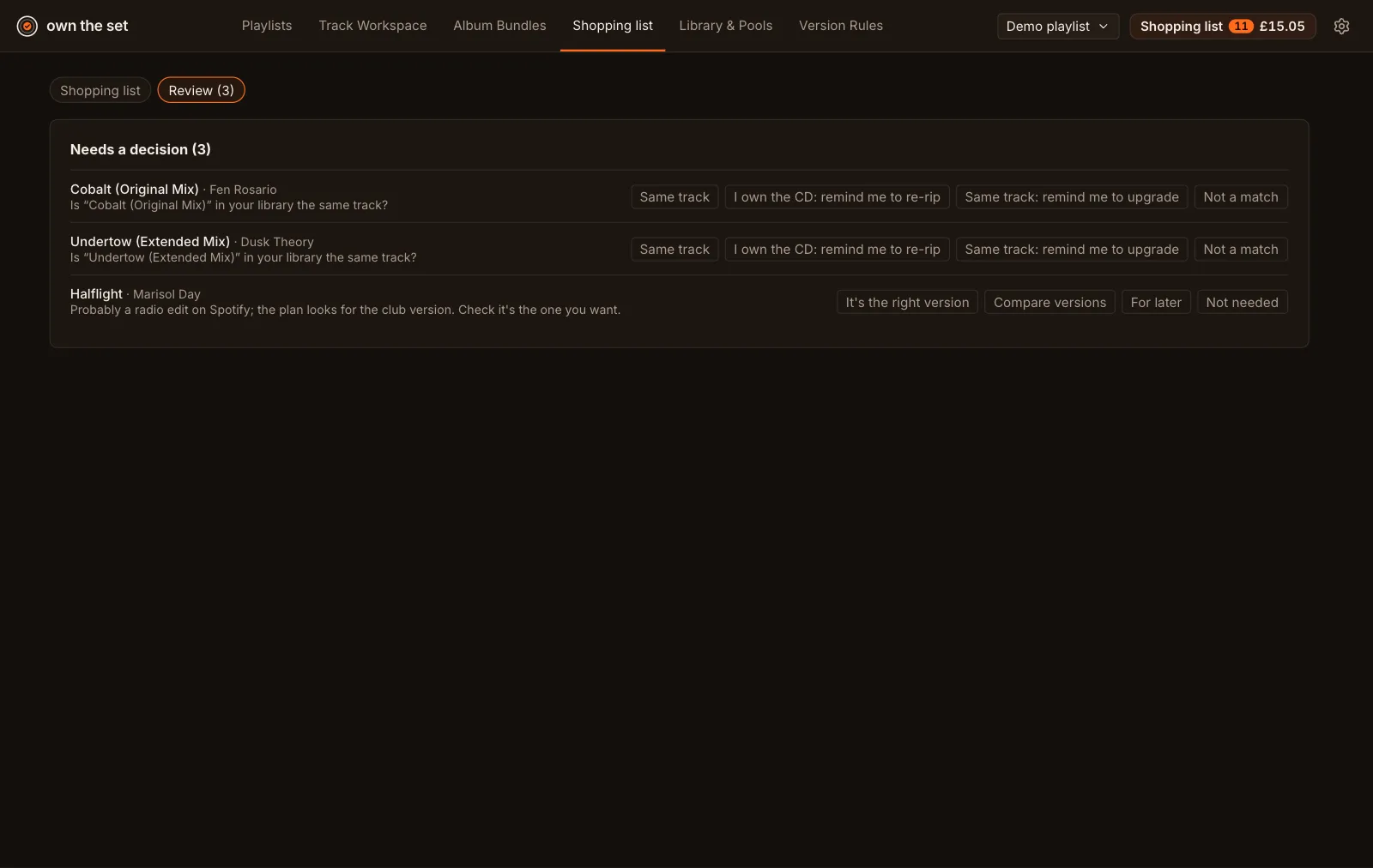
Review
Section titled “Review”Review lists the tracks with a decision to make, one after another: Same track, Not a match, Use the radio edit, For later, Not needed, the reminders, and Compare versions to open the track’s page.