Import a playlist
Drag anything onto the Own the Set window, or open Playlists › Import a playlist. There’s no format to choose: Own the Set recognises what you drop or paste, and a mixed paste is read line by line.
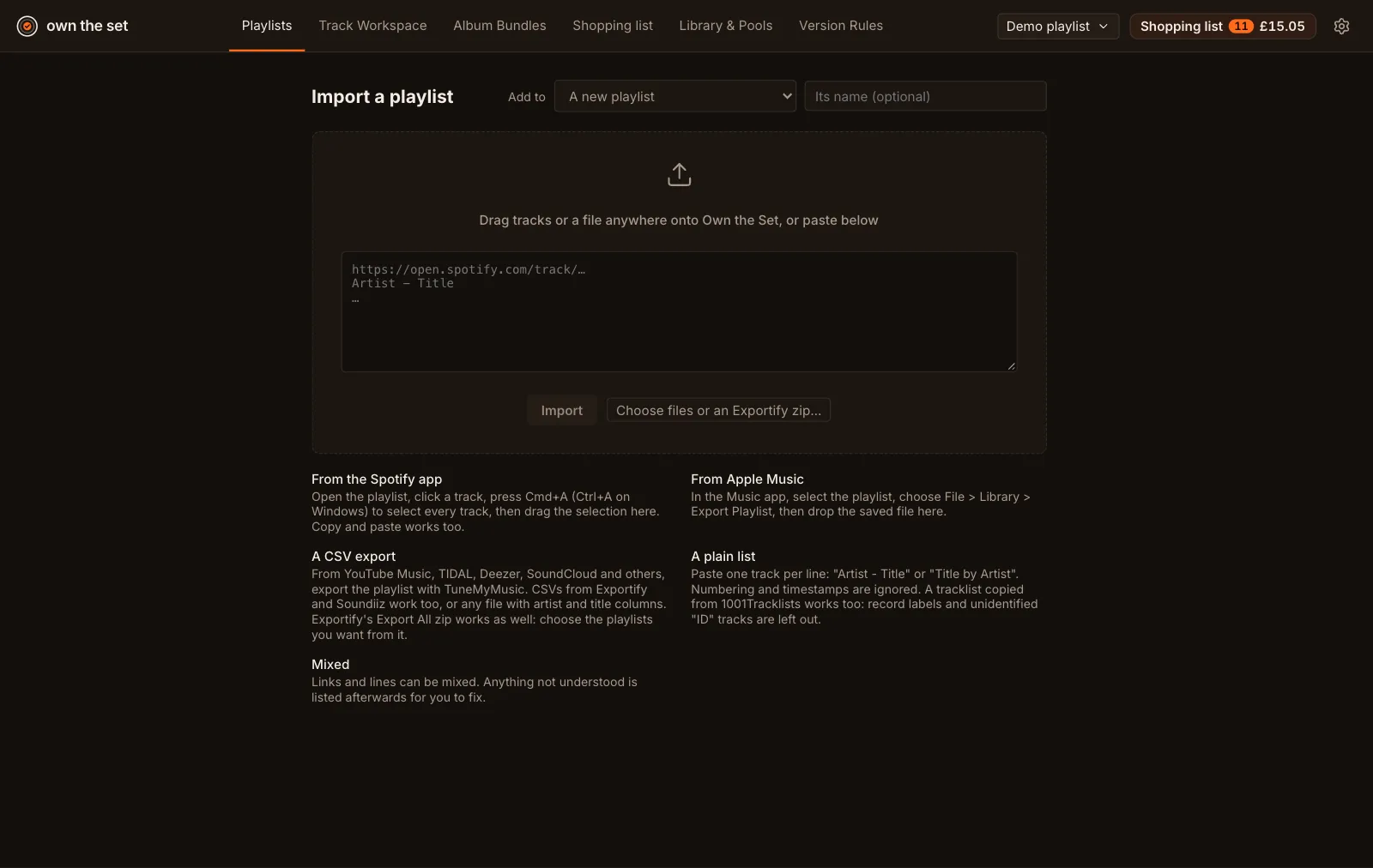
| From | How |
|---|---|
| Spotify | Open the playlist in the Spotify desktop app, click a track, press Cmd+A, and drag the tracks onto Own the Set. Copy and paste works too. |
| Apple Music | In the Music app, select the playlist, choose File › Library › Export Playlist, and drop the saved file in. |
| A CSV export | From Exportify, TuneMyMusic or Soundiiz, or any CSV with artist and title columns (album, length and ISRC are used when present). |
| An Exportify zip | Exportify’s Export All zip of every Spotify playlist. See Exportify zips and uploads. |
| A pasted list | One track per line, as “Artist - Title” or “Title by Artist”. Numbers, timestamps, “w/”, record labels in square brackets and unidentified “ID - ID” tracks are cleaned up, so a tracklist copied from 1001Tracklists works. |
How to get a playlist out of YouTube Music, TIDAL, Deezer, SoundCloud or Amazon Music: owntheset.com/import.
Into which playlist
Section titled “Into which playlist”Add to chooses where the tracks go: A new playlist (give it a name, or leave it to be named for you), or one you already have. Adding to an existing playlist adds only the tracks it doesn’t already hold.
What’s kept
Section titled “What’s kept”- Each recording once. A track repeated in the playlist is removed, and the Playlists page notes how many repeats were taken out.
- The newest 50 tracks of a long playlist, by when they were added (or the end of the list). The upload picker can change that number, and 0 keeps them all.
- What wasn’t understood is listed after the import, to edit into “Artist - Title” lines or Spotify links and try again.
A Spotify playlist or album link can’t be imported: that needs a Spotify sign-in, which Own the Set doesn’t use. Drag the tracks in instead.